How to Make a Habit Tracker in Excel or Google Sheets
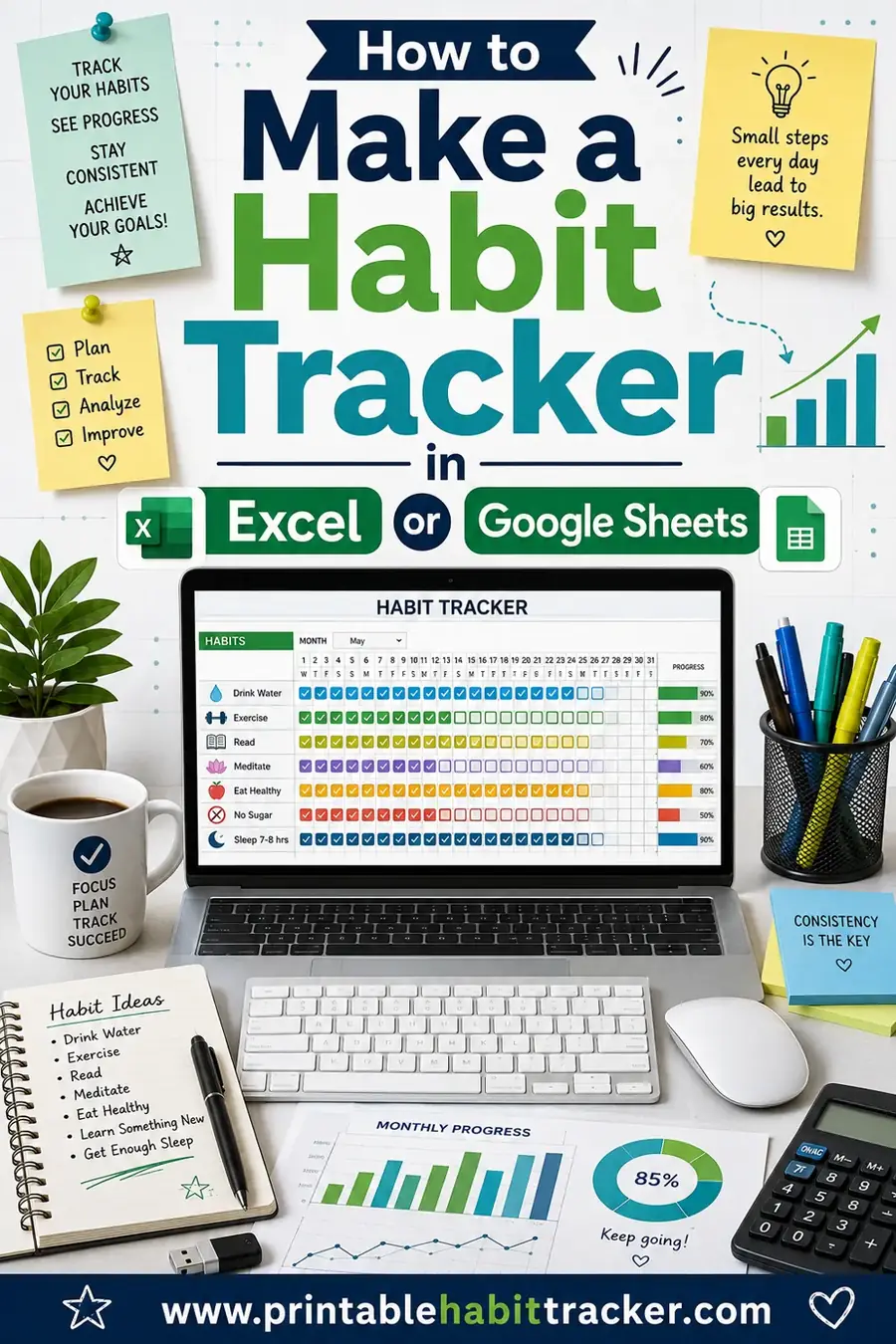
To make a habit tracker in Excel or Google Sheets, list your habits down the first column, put the days of the month across the top row, and mark an X (or check a box) in each cell when you complete a habit. From there you can add a formula to total your completed days and conditional formatting to color the cells automatically. A basic tracker takes about ten minutes, and it works the same in both Excel and Sheets.
Want something you can print and stick on the wall instead? You can make a free printable habit tracker in under a minute, no formulas or spreadsheet skills required. We'll cover both so you can choose.
Why Use a Spreadsheet to Track Habits
Spreadsheets are free, you probably already have one, and they do the math for you. If you're comfortable in Excel or Google Sheets, building a habit tracker there is quick and gives you instant totals, percentages, and color-coded progress without buying any app.
Google Sheets has the edge for syncing. It lives in your browser and on your phone, so you can tick a habit from anywhere and it saves automatically. Excel works great too, especially if you prefer desktop software or already organize your life in it.
The main downsides are that a spreadsheet is easy to forget (it's not on your wall), and it can pull you toward your screen. For some people that's a deal-breaker, which is why we'll also cover the print route.
Excel vs Google Sheets: Which to Pick
Both do the job. Here's the quick comparison so you can choose without overthinking it.
| Factor | Excel | Google Sheets |
|---|---|---|
| Cost | Paid (or Microsoft 365) | Free |
| Syncs across devices | With OneDrive | Yes, automatic |
| Mobile editing | Yes (app) | Yes (app/browser) |
| Formulas & formatting | Full-featured | Full-featured |
| Best for | Desktop users, existing 365 users | Anyone, free, on-the-go |
For most people starting fresh, Google Sheets is the easy pick because it's free and syncs everywhere. If you already live in Excel, stick with it. The steps below work in both.
Step-by-Step: Build Your Spreadsheet Habit Tracker
Here's the whole build. Follow these in order and you'll have a working tracker in about ten minutes.
| Step | What you do |
|---|---|
| 1. List habits | Type each habit down column A |
| 2. Add days | Put dates 1–31 across row 1 |
| 3. Mark completions | Type X or check a box in each cell |
| 4. Add a total | Use COUNTIF or COUNTA to tally each habit |
| 5. Color the cells | Conditional formatting to fill done days |
| 6. Add a percentage | Optional completion rate per habit |
Let's break down the parts people get stuck on.
1. Set up the grid
In cell A2, type your first habit (like "Drink water"). Add more habits going down column A. Then in row 1, starting at B1, type the days of the month: 1, 2, 3, and so on across the columns. You now have a habit-by-day grid.
2. Mark your completions
Each day you complete a habit, go to that habit's row, find today's column, and type an X. If you'd rather click than type, both Excel and Sheets let you insert a checkbox: in Sheets it's Insert → Checkbox, and you just tick it.
3. Total your habits with a formula
Add a column at the end labeled "Done." To count how many days you completed a habit:
- If you use X marks: `=COUNTIF(B2:AF2,"X")`
- If you use checkboxes: `=COUNTIF(B2:AF2,TRUE)`
Drag that formula down for every habit, and you instantly see how many days you hit each one this month.
4. Add a completion percentage (optional)
Want a percentage? Divide your "Done" count by the number of days so far. For a 30-day month: `=Done/30`, then format the cell as a percentage. Now you can see at a glance that you hit a habit 80% of the time.
Make It Look Good with Conditional Formatting
A plain grid of X's works, but colored cells are far more motivating. Conditional formatting fills a cell with color automatically when you complete a habit.
Here's the gist:
- Select your habit grid (the cells where you mark completions).
- Open Format → Conditional formatting (Sheets) or Home → Conditional Formatting (Excel).
- Set the rule: if the cell contains "X" (or is TRUE for checkboxes), fill it green.
- Save it.
Now every day you complete a habit, the cell turns green on its own. A row of green squares feels great and shows your streak instantly. You can use different colors per habit if you like a colorful tracker.
Add a Streak or Weekly View
Once the basics work, a couple of extras make the tracker more useful.
Weekly totals
Insert a "week" total every seven columns using `=COUNTIF()` on just that week's cells. This breaks the month into chunks so a rough week doesn't feel like the whole month is ruined.
A simple streak idea
True automatic streak counting in a spreadsheet gets complex with formulas. An easier approach: glance at your row of colored cells. A streak is just the run of green squares before the first blank. You don't always need a formula to feel the momentum, your eyes do the work.
A dashboard cell
Put a big `=SUM()` or `=AVERAGE()` of all your "Done" columns in a highlighted cell at the top. One glance tells you how the whole month is going.
Spreadsheet vs Printable: Which Sticks Better
Spreadsheets are powerful, but power isn't the same as consistency. Here's an honest look at when each one wins.
| Factor | Spreadsheet tracker | Printable tracker |
|---|---|---|
| Setup time | ~10 min | Under 1 minute |
| Cost | Free (Sheets) | Free |
| Auto totals & color | Yes | Manual, at a glance |
| Always visible | Only when you open it | Yes, on the wall |
| Distraction risk | Higher (you're on a device) | Zero |
| Best for | Data lovers, on-the-go logging | Anyone who wants it simple and visible |
If you love numbers and already work in spreadsheets all day, a Sheets tracker fits right in. If you tend to forget anything that isn't physically in front of you, a printable tracker on the fridge often wins. A common hybrid: log detailed stuff in Sheets, and keep a printed sheet for the daily yes/no check-off so you never forget.
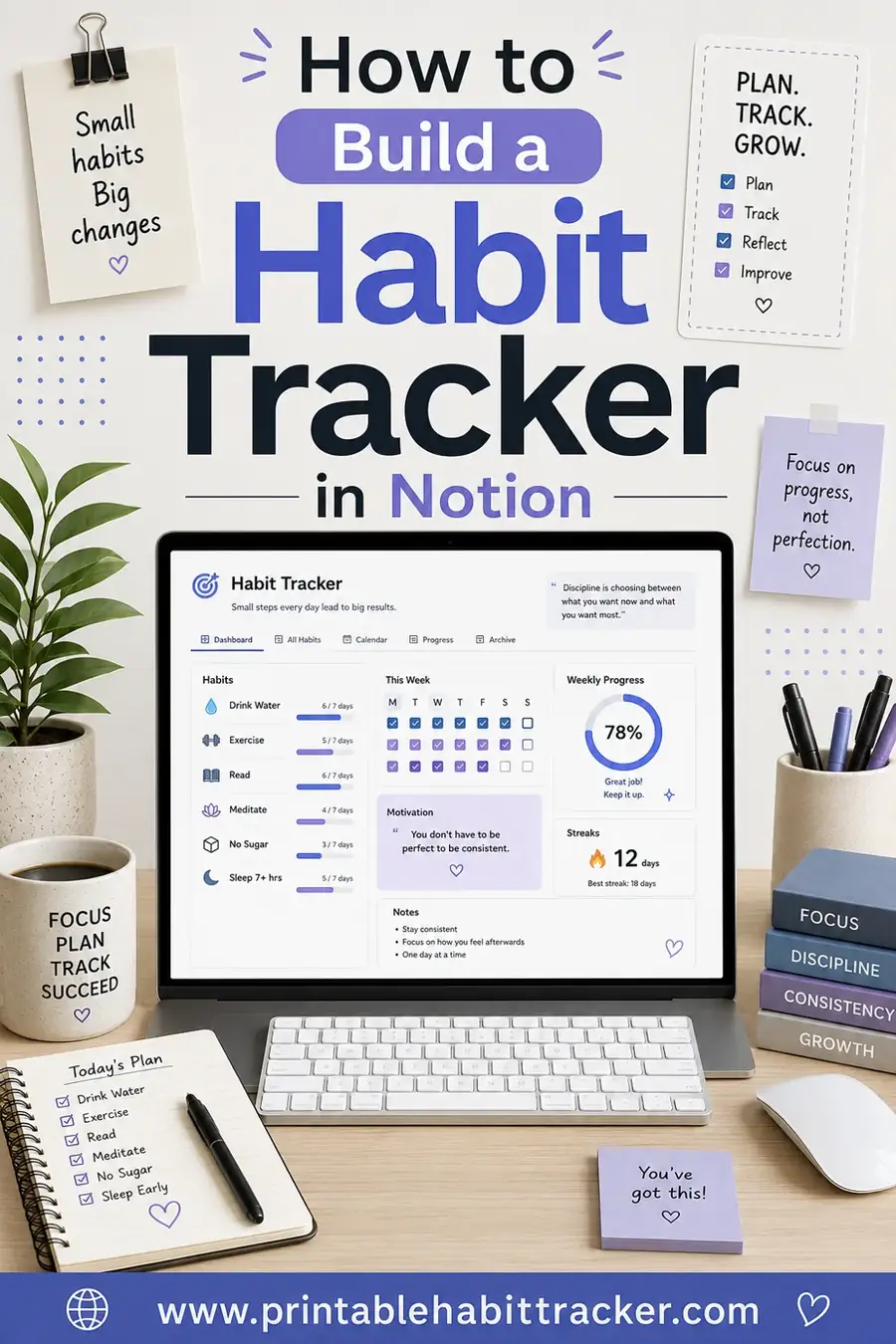
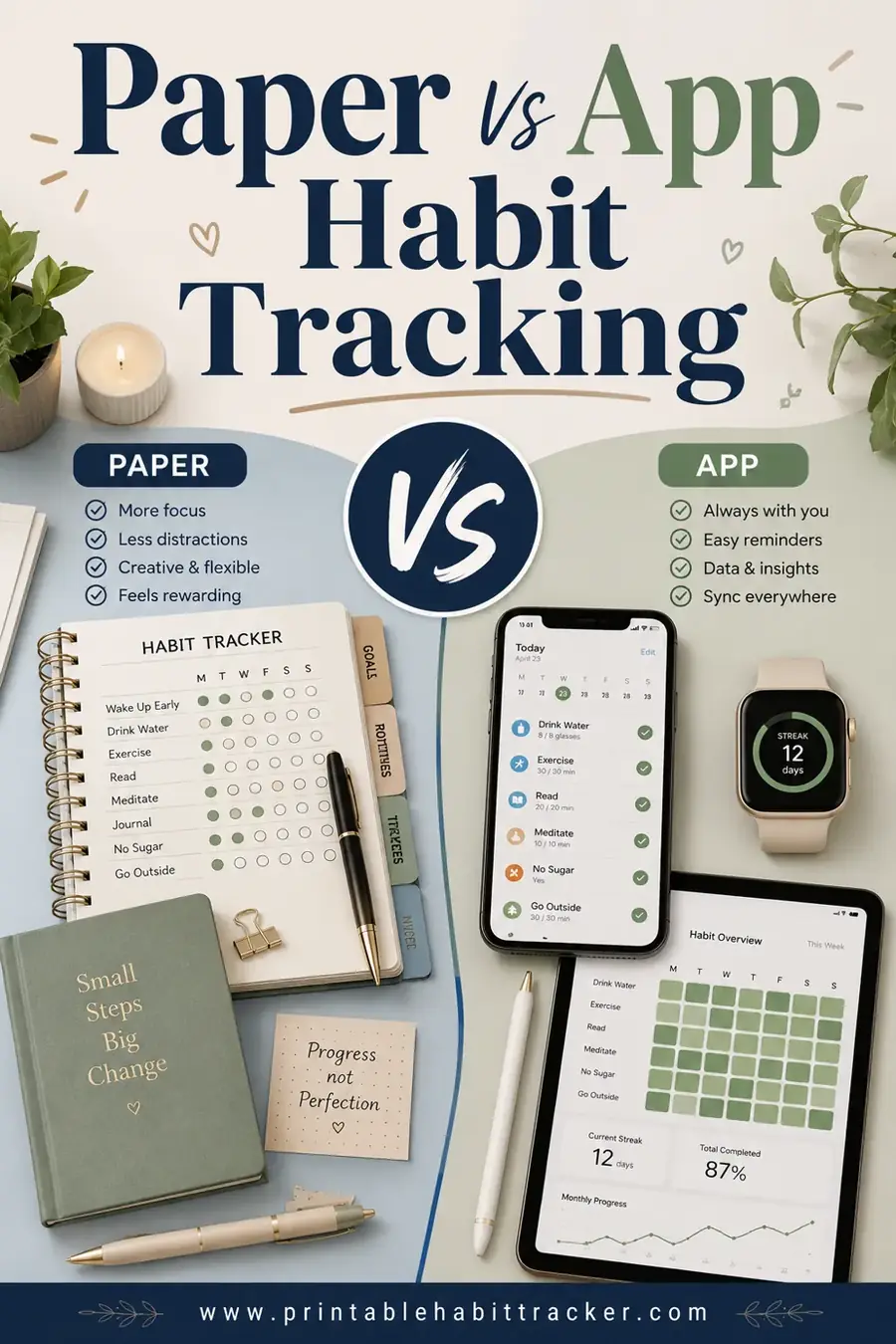
For a similar digital build with a different tool, see our habit tracker in Notion guide. And if you're still deciding between screens and paper, the paper vs app habit tracking post lays out which method tends to stick.
Common Spreadsheet Tracker Mistakes to Avoid
Spreadsheets are flexible, which means it's easy to make them more complicated than they need to be. A few traps to sidestep:
- Over-formatting before you start. Spending an hour on colors and formulas, then never logging a single day. Build the plain grid first, use it for a week, then prettify it.
- Forgetting the dates roll over. A fixed 30-column setup breaks on 31-day months or February. Either build for 31 columns or copy a fresh tab each month and adjust.
- Breaking a formula by typing the wrong mark. If your COUNTIF looks for "X" but you type "x" or a checkmark, it won't count. Pick one mark and stick to it, or use checkboxes to remove the guesswork.
- Tracking too many habits. A grid with fifteen rows is intimidating. Cut it to the few that matter and keep the sheet clean.
- Leaving it closed. A spreadsheet you never open does nothing. Pin the tab, set a reminder, or keep the file on your desktop so it's always one click away.
The theme here is the same as with any tracker: simple and visible wins. A bare grid you actually fill in beats a beautiful, formula-heavy sheet you forget about by midweek.
Tips to Keep Your Spreadsheet Tracker Going
Building it is the easy part. Using it daily is the challenge. These help:
- Bookmark it. Keep the Sheets tab pinned or the Excel file on your desktop so it's one click away.
- Log at a set time. Tie it to your morning coffee or your end-of-day wrap-up.
- Start small. Three to five habits. A giant grid is intimidating and easy to abandon.
- Use color. Conditional formatting makes progress visual and satisfying, which keeps you coming back.
- Copy the tab each month. Duplicate your sheet, clear the marks, and you've got a fresh month in seconds.
As always, don't chase a perfect record. The goal is to never miss two days in a row.
Frequently Asked Questions
How do I make a habit tracker in Excel or Google Sheets?
List your habits down column A and the days of the month across row 1, then mark an X or tick a checkbox in each cell when you complete a habit. Add a COUNTIF formula to total each habit and conditional formatting to color completed days. The basic version takes about ten minutes.
Is a Google Sheets habit tracker free?
Yes, completely. Google Sheets is free with any Google account, syncs across your devices automatically, and needs no add-ons for a habit tracker. Excel can also do it, but it requires a paid Microsoft license, so Sheets is the budget-friendly pick.
How do I count completed habits with a formula?
Use COUNTIF. If you mark completions with an X, the formula `=COUNTIF(B2:AF2,"X")` counts how many days you hit that habit. If you use checkboxes, use `=COUNTIF(B2:AF2,TRUE)`. Drag it down for each habit row to get all your totals.
How do I color the cells automatically?
Use conditional formatting. Select your grid, open Format → Conditional formatting (Sheets) or the Conditional Formatting menu (Excel), and set a rule that fills a cell green when it contains "X" or is checked. Completed days then color themselves as you go.
Is a spreadsheet or a printable better for habits?
It depends on you. A spreadsheet auto-calculates totals and syncs everywhere, which suits data lovers. A printable is always visible on your wall with zero setup and no screen to distract you. Many people use a spreadsheet for stats and a printable tracker for the daily check-off.
Can I reuse my spreadsheet tracker each month?
Yes. Just duplicate the tab, clear the previous month's marks, and update the dates. Your formulas and formatting carry over, so a fresh month is ready in seconds. That reusability is one of the spreadsheet's biggest advantages.
Ready to Track Your Habits?
A spreadsheet is a great, free way to track habits if you love your totals and color-coded progress, and you can build one in about ten minutes. But if you'd rather have something on the wall that you can't ignore, build a free printable habit tracker instead, print it, and start today. Pick a habit, mark day one, and let the streak begin.