Password Tracker Printable: Free Custom Log & Security Checkup Sheet
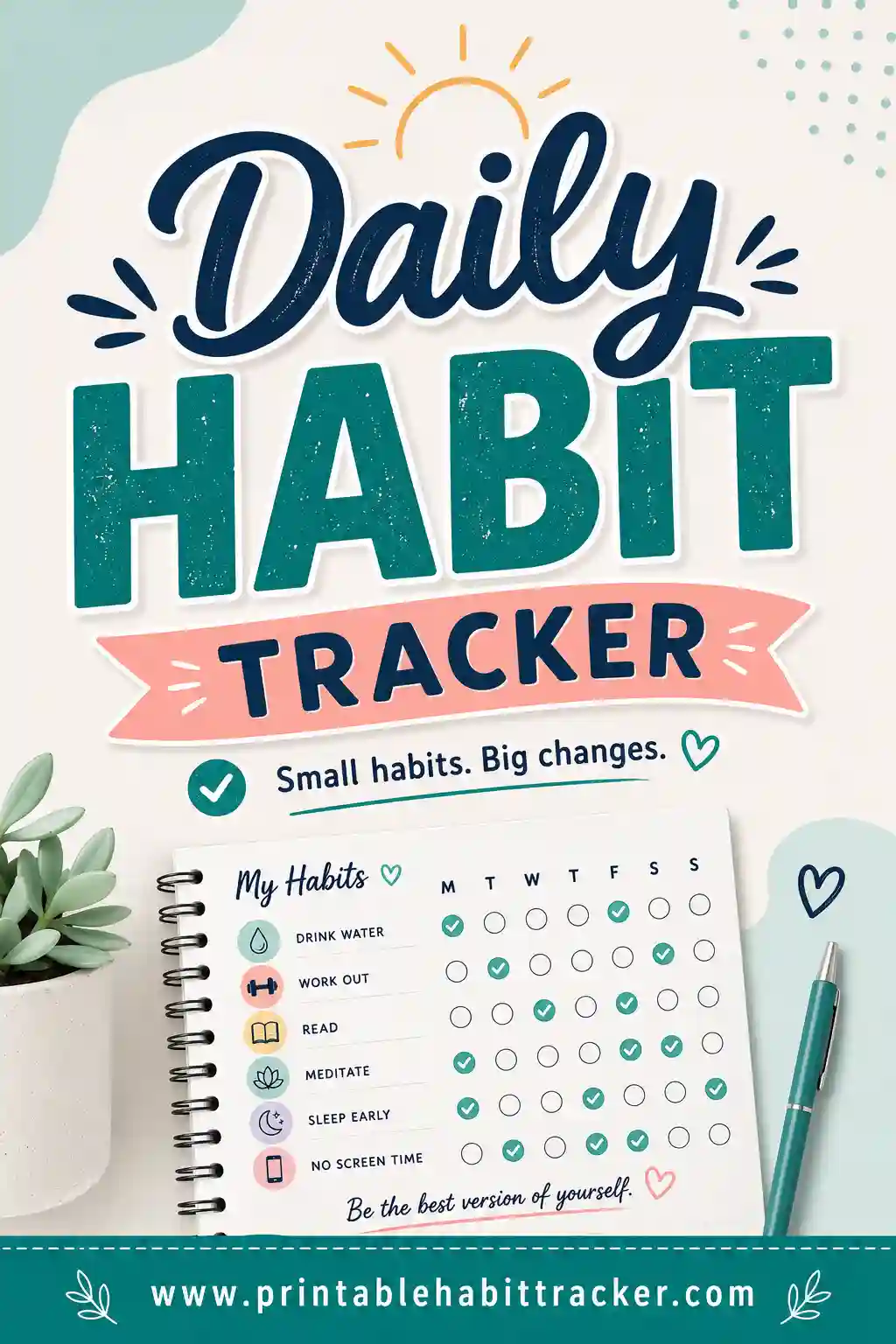
A password tracker printable is a paper sheet that keeps your accounts organized: every site or service listed on its own row, with space to note the email you used and a hint that unlocks your memory — plus boxes to check off security tasks like turning on two-factor authentication. It's the fix for the "which email did I sign up with?" spiral. The fastest way to build one that fits your actual accounts is a free printable habit tracker builder — type each account as a row, print, and fill in the details by hand.
Want one right now? Open the free builder, add a row per account, pick the daily layout for a clean checklist, and print. No sign-up, no watermark — and nothing you type into the builder leaves your browser.
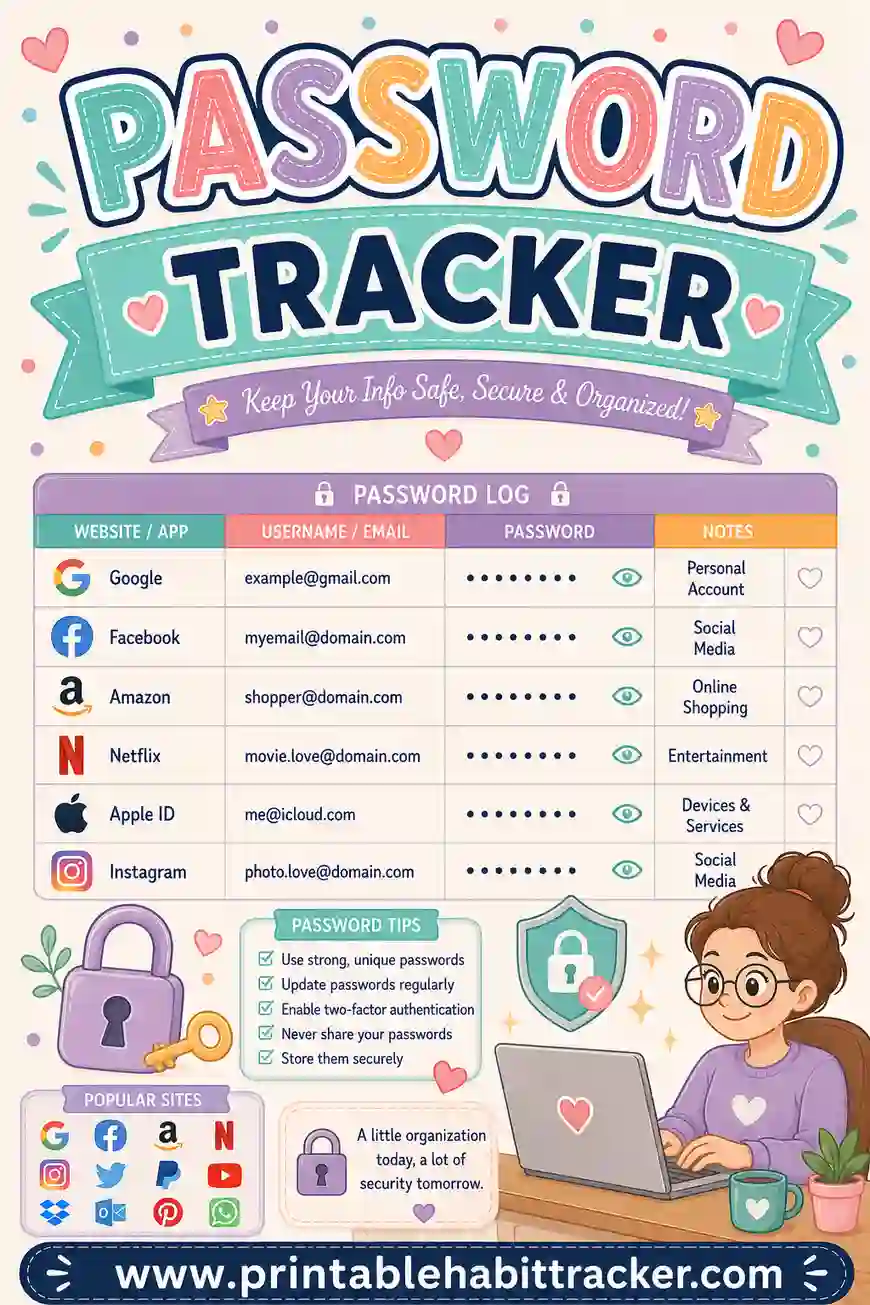
What Is a Printable Password Tracker?
At its simplest, it's a list: your accounts down the side, and space to write the details you always forget. Bank, email, streaming, the utility portal you log into twice a year — each on its own row.
An honest word about how this tool maps to the job. The builder makes tracking grids — rows with check boxes — rather than lined address-book pages. That turns out to be a feature, because the most useful password sheet isn't a page of secrets. It's two things at once:
- An account index. Each row names an account, and you hand-write the username or email and a hint (not the full password) next to it after printing.
- A security checkup grid. The boxes across each row become your checklist: unique password? Two-factor on? Updated this year? In the password manager?
That second part is what a plain lined template can't do — and it's the part that actually keeps your accounts safe.
First, the Safety Talk (Please Read This Bit)
Paper is surprisingly safe from hackers — nobody in another country can breach your kitchen drawer. But it's completely unsafe from anyone in your home, and useless if it's lost in a move. So three rules:
- Write hints, not passwords. "Usual + bank formula" or "dog's name + year we moved" tells you everything and a stranger nothing.
- Store it like a document, not a decoration. A drawer, a file folder, a fire safe — not pinned above the desk.
- Never list the full details for financial accounts. For banking, write the account name and a hint only.
Used this way, a printable password tracker is a genuinely sensible backup — especially for anyone who isn't comfortable with a password manager app, or as the "if something happens to me" sheet families keep with important documents.
What to Put on Your Password Tracker
Copy these rows into the builder and edit to match your life:
| Row (account) | What to hand-write after printing |
|---|---|
| Main email | Username + hint. This one guards everything else |
| Backup email | Often forgotten, often needed for recovery |
| Bank / credit union | Hint ONLY — never the password |
| Phone carrier | Account PIN hint — needed for support calls |
| Wi-Fi router | Network name + where the password sticker is |
| Streaming (each) | Which email you signed up with |
| Shopping accounts | Amazon, eBay — email used |
| Utilities portal | Login you use twice a year and always forget |
| Social media (each) | Email + hint |
| Tax / government portal | Username hint — these have strict lockouts |
Most people land between ten and twenty rows. If you're over twenty-five, that's a hint of its own that a password manager app should be doing the heavy lifting, with this sheet as the human-readable index.
How to Make a Password Tracker Printable in 4 Steps
- List your accounts. In the free builder, type each account on its own row — "Main email (Gmail)," "Bank — hint only." Start with the ten you use most.
- Pick the daily layout. It prints as a clean checklist — rows with boxes — leaving room to write details beside each name. The weekly layout works too if you want a column of boxes per row for the checkup version.
- Add the notes box. Use it for your recovery info: where your backup codes live, which drawer the sheet goes in, the date of your last checkup.
- Print two copies. One for the drawer, one for the fire safe or the folder with your important documents. Save as PDF only if your computer is private.
Your row list saves locally in your browser, so adding a new account later takes ten seconds and a reprint.
The Password Checkup Grid (the Upgrade Most Sheets Miss)
Here's where the grid format earns its keep. Pick the weekly layout so each account row gets a run of boxes, then treat the boxes as your security checklist — decide what each position means and write a small key in the notes box:
- Box 1: Password is unique (not reused anywhere)
- Box 2: Two-factor authentication is on
- Box 3: Recovery email/phone is current
- Box 4: Changed within the last year
- Box 5: Stored in my password manager
One rainy afternoon with a cup of tea, go account by account and fill in what's true. The empty boxes become your to-do list — and fixing one per week is a perfectly good pace. Turn on the streak boxes if you want a little momentum reward for consecutive weeks of fixes. It's the same "make it visible, make it checkable" logic as a goal tracker, pointed at your digital life.
Layouts to Try
The account index (daily layout)
One clean checklist page: account names down the side, a single check column, white space for hand-written hints. The classic.
The checkup grid (weekly layout)
Each account gets five to seven boxes — your security checklist per account, as above. The most genuinely useful version.
The family document sheet
Color-code rows by person — your accounts in one color, your partner's in another, the shared household logins in a third — with the printed key at the bottom. One page, whole household, kept with the important papers.
The quarterly refresh (yearly layout)
Twelve month-columns, rows like "Changed email password," "Reviewed bank logins," "Backed up codes." Check the month you did it. Password chores, four times a year, actually happening.
Printing and Storage Tips
- Print in Classic black-and-white. This is a document, not a poster — and it photocopies cleanly.
- Use pencil for details that change. Passwords hints and recovery numbers get updated; pencil survives that.
- Cardstock survives a drawer better than printer paper.
- Don't laminate this one — you need to write on it forever.
- Date the sheet. Bottom corner, in the notes box. When you find two copies in five years, you'll know which is current.
- Tell one trusted person where it lives. That's half the reason it exists.
When to refresh the sheet
Put four small triggers on your calendar and the sheet stays trustworthy forever: after any breach news about a service you use (change that password, update the row), whenever you open a new account (add the row that week, not "someday"), when a card or phone number changes (recovery info rows go stale silently), and once a quarter as a general sweep. Each trigger is a two-minute job — and two minutes is exactly what keeps this from becoming another abandoned system.
Common Password Tracker Mistakes
- Writing full passwords in plain text. Hints only. If a hint wouldn't be enough for you, the password is too complicated to remember anyway — let a password manager hold it.
- Keeping the sheet next to the computer. That's the first place anyone looks. Drawer, folder, safe.
- Listing fifty accounts. Track the twenty that matter. Dead accounts belong on a "close these" list, not your index.
- Never updating it. An outdated password sheet is worse than none — you'll trust wrong information. A five-minute quarterly refresh keeps it honest.
- Skipping the two-factor column. Turning on 2FA for your main email is the single biggest security win on the whole page. Make it box number one.
A Sample Filled-In Password Tracker
| Account | Unique? | 2FA on? | Recovery current? | Hint written? |
|---|---|---|---|---|
| Main email | ✔ | ✔ | ✔ | ✔ |
| Bank | ✔ | ✔ | ✔ | ✔ |
| Amazon | ✔ | ✔ | ✔ | |
| Streaming | ✔ | ✔ | ||
| Utilities portal | ✔ |
Notes box: "Backup codes: blue folder, top shelf. Last checkup: July. Next: October." Two accounts share an old password and the utilities portal needs everything — that's next Sunday's ten-minute job, already scheduled by a piece of paper.
Frequently Asked Questions
Is the password tracker printable really free?
Yes — the builder is completely free, with no sign-up and no watermark. And since the tool runs in your browser and saves locally, your account list never gets uploaded anywhere.
Is it safe to write passwords on paper?
Safer than reusing one password everywhere, and safe enough for most homes if you write hints instead of full passwords and store the sheet out of sight. For financial accounts, hints only — no exceptions. Security experts worry far more about weak, reused passwords than about a sheet in a locked drawer.
Should I use this instead of a password manager?
Ideally, alongside one. The app stores the actual passwords; the printed sheet is your human-readable index and your emergency backup — the thing a family member can find if they ever need to. If apps aren't your thing, a hint-based paper tracker is a respectable second-best.
Can I add new accounts later?
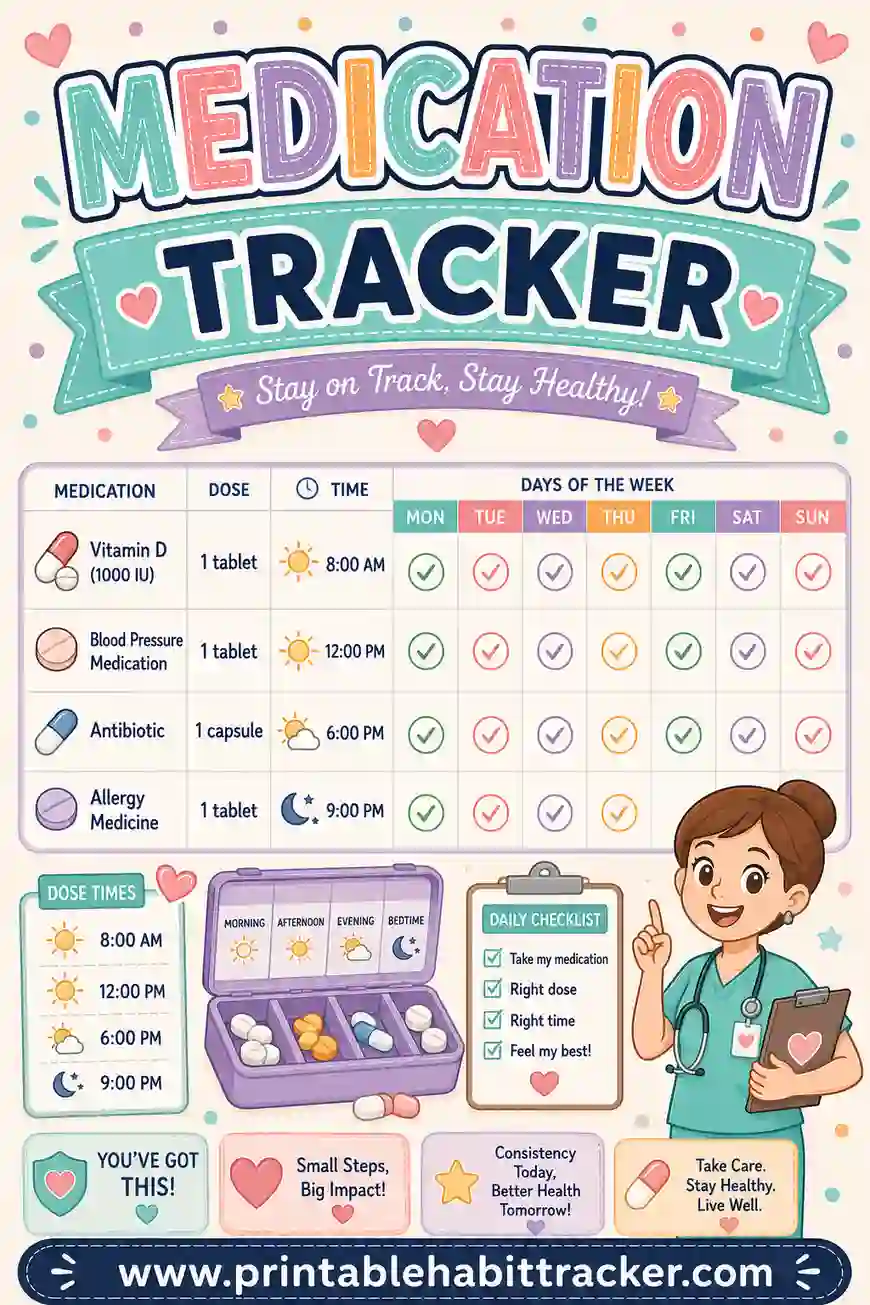
Yes. Your rows are saved locally in your browser, so you open the builder, add the row, and reprint. Date the new copy and shred the old one — the same simple refresh routine that works for a medication tracker or any document you keep current.
What should go in the notes section?
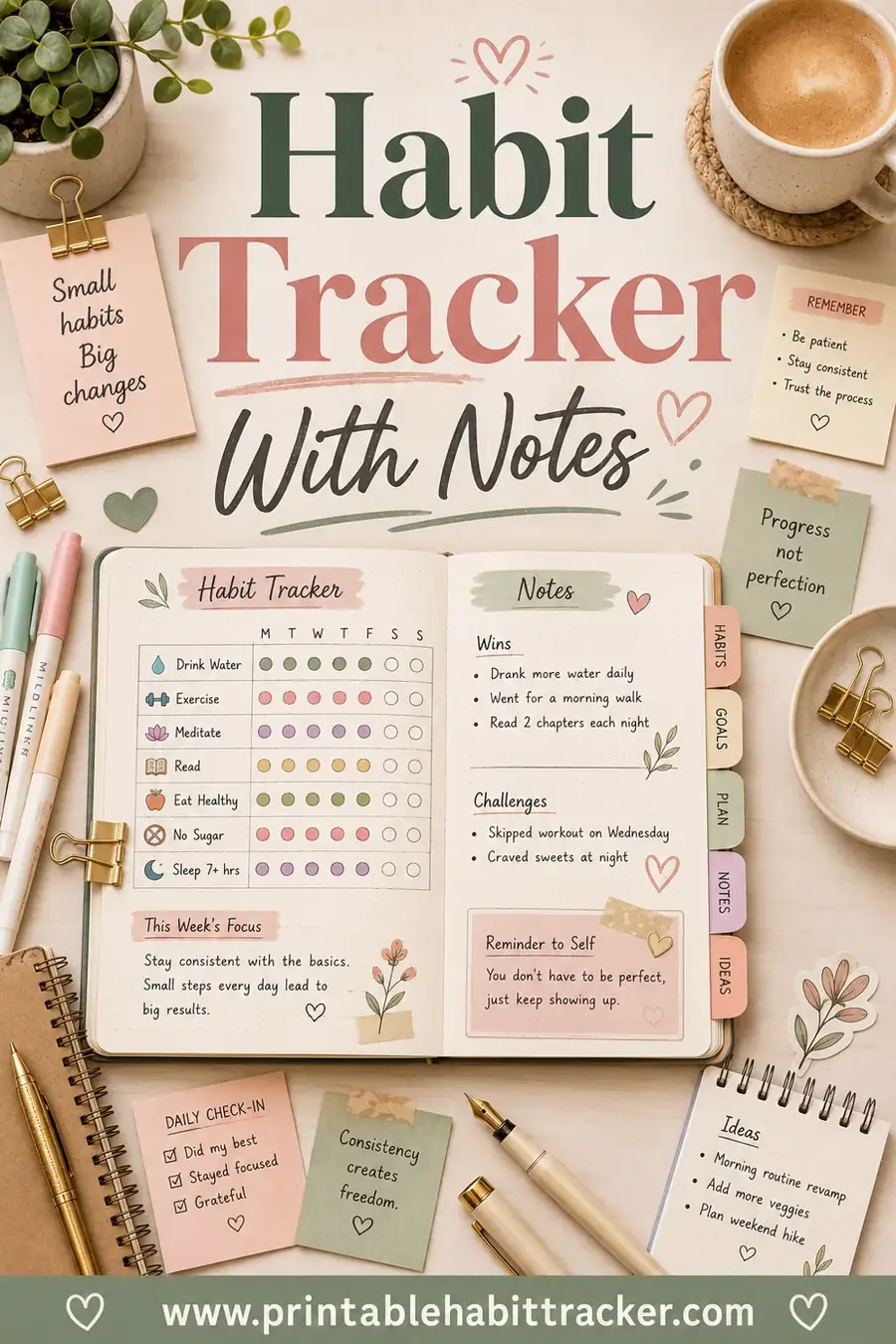
Where your backup codes live, the date of the last update, who to contact about shared accounts, and your personal hint "formula" reminder if you use one. Anything future-you (or family) would need at a stressful moment — the same idea as a habit tracker with notes, where the margin note is half the value.
Ready to Print Your Password Tracker?
List your ten most important accounts, open the free password tracker builder, pick the daily layout, and print two copies. It's free, nothing leaves your browser, and the next time someone asks "what's the Wi-Fi password?" or "which email is the electric bill under?" — you'll know exactly which drawer has the answer.