Kids Screen Time Chart: Earn and Track Daily Limits
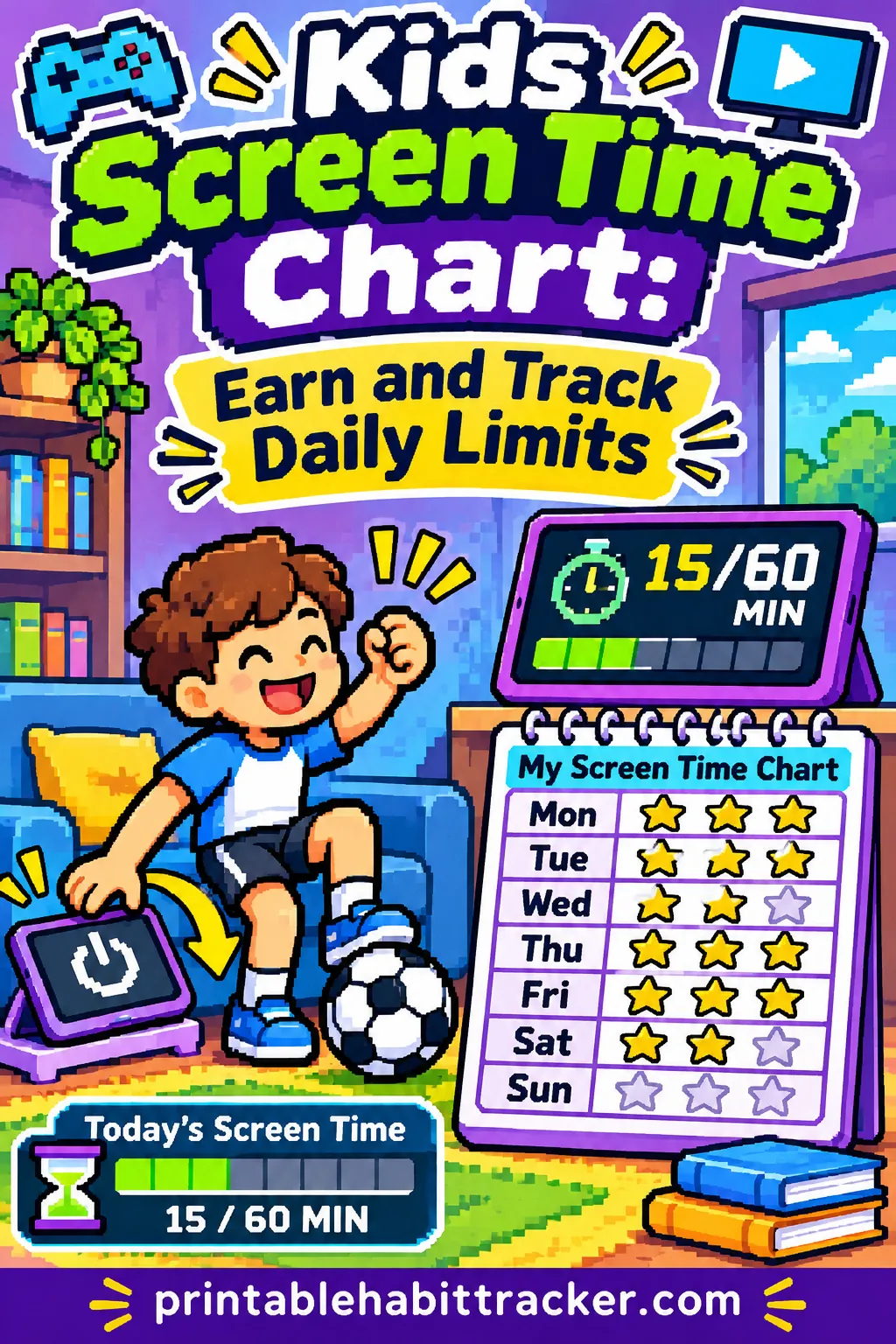
A kids screen time chart works when it answers three questions before anyone asks them: how many minutes are allowed today, what has to happen first, and how much is left. Put those three things on one printed page on the fridge, check boxes as tasks get done, and the nightly argument turns into a quick look at the chart.
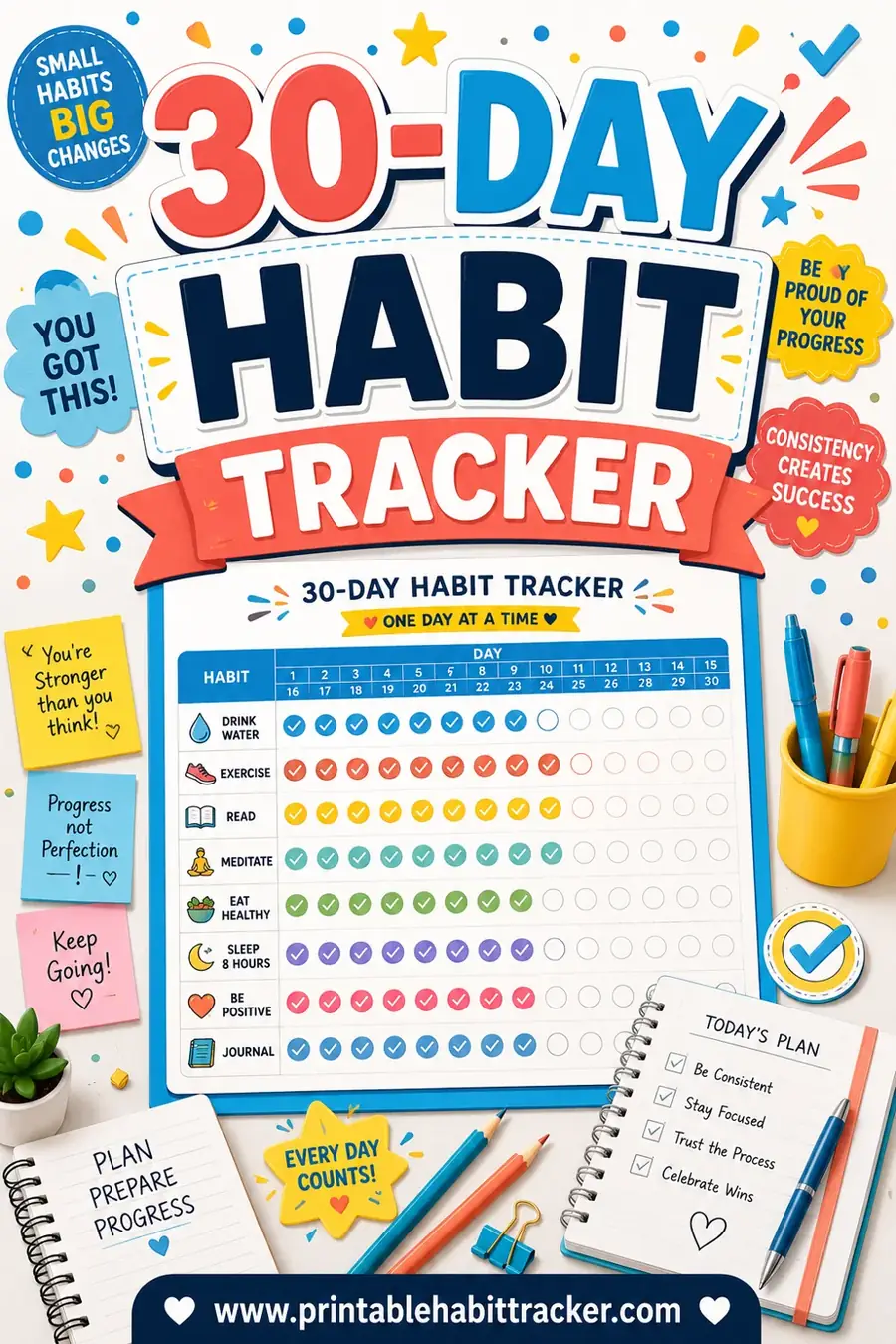
You can make one in a couple of minutes with the free printable habit tracker maker on this site: build this exact tracker with the habits already filled in, then tweak it for your kid. This guide gives you ready-made rules, earning menus by age, exact tool settings, sample weeks and fixes for the problems that come up in week two, when the novelty wears off.
✅ Try this tracker for one week
Tap a box each day you do the habit. Your ticks stay on this device.
Why Screen Time Fights Happen (and What a Chart Changes)
Most screen time arguments aren't really about screens. They're about uncertainty.
A child doesn't know if today is a "yes" day or a "no" day. The rule last Tuesday was an hour, but on Saturday it seemed like there wasn't a rule at all. When Grandma visited, the tablet stayed on all afternoon. From a kid's point of view, the limit feels random, so asking again (and again) is a reasonable strategy. Sometimes it works.
Parents feel it from the other side. You're making the call fresh every single day, usually when you're tired, cooking dinner or answering a work message. Each "no" becomes a small negotiation, and each negotiation costs energy you don't have at 5:30 p.m.
A printed chart changes three things at once:
- The rule lives on paper, not in your mood. The chart says what's allowed. You're just pointing at it.
- Kids can see the path to "yes." Instead of "Can I have the tablet?" the question becomes "What do I still need to check off?"
- Everyone sees the same count. No more "I only played for ten minutes!" when it was closer to forty. The minutes are written down.
There's also a quieter benefit. When the rule is visible, you stop being the bad guy. The chart is the referee. You're the coach helping your kid win.
What Goes on a Kids Screen Time Chart
A good chart is simple enough that a seven-year-old can read it and sturdy enough that a twelve-year-old can't find loopholes. Here's what to include.
| Section | What it shows | Why it matters |
|---|---|---|
| Child's name and week | Who the chart belongs to and the dates | Each child has their own deal, which cuts down on "but she gets more" |
| Base daily limit | The minutes allowed on a normal day | The default answer, decided once |
| "First, then" tasks | Two to four things done before screens | Keeps homework, chores and reading ahead of devices |
| Earning tasks | Optional jobs that add bonus minutes | Gives kids a positive way to get more |
| Minutes used | A box or row for each day's actual time | Makes the count visible |
| Device curfew | The time screens go in the basket | Protects sleep and evenings |
| Reward box | A weekly goal for a good streak | Something to look forward to |
| Notes | Exceptions, sick days, special events | Records why a day was different |
You don't need all eight sections on day one. For a child under seven, a name, three "first, then" boxes and a curfew time is plenty. Older kids can handle the full version, and many actually like the earning section because it puts them in charge.
The three numbers to decide before you print
Before you open any template, sit down (alone or with your partner) and settle three numbers:
- The base limit for school days. How many recreational screen minutes are fine on a normal weekday once everything else is done?
- The base limit for weekends and breaks. Usually a bit higher, but decide it now so Saturday isn't a free-for-all.
- The cap. The most a child can have in one day, even with earned bonus minutes. Without a cap, a motivated kid can earn their way to an all-day gaming session.
There's no single correct number here. Families land in very different places depending on the kids' ages, schedules, sleep, schoolwork and what the screens are actually used for. Your pediatrician can talk through what makes sense for your child, and many families use a written family media plan to agree on the bigger picture. The chart is the tool that makes whatever you decide easy to follow every day.
Decide what counts as "screen time"
This is where most charts fall apart, so settle it up front and write it on the chart.
| Usually counts | Usually doesn't count | Your call |
|---|---|---|
| Video games on any device | Homework done on a school laptop | Educational apps |
| Watching shows or videos for fun | Video calls with grandparents | Family movie night |
| Scrolling social apps or video feeds | Using a timer, music or audiobook with the screen off | Coding or creative projects |
| Playing games on a parent's phone | Reading on an e-reader with no apps | Group video games with friends |
Write one line at the top of the chart, something like: "Screen time = games, shows and videos for fun. School work and calls with family don't count." Kids are great lawyers. A clear definition saves you dozens of debates.
The "your call" column is where families differ most. Some count educational apps as free time because they're still screen-based. Others let them slide because they help with schoolwork. Neither is wrong. Just pick one and stick with it for at least a month.
Three Ways to Structure the Chart
There are three common systems. Each one fits a different family, and you can switch later if the first one doesn't stick.
1. The fixed-limit chart
Every day has the same allowance. Screens open up once the "first, then" tasks are done.
How it looks on paper: Each day has checkboxes for homework, chores and reading, then a box for minutes used. When all the task boxes are checked, screens are open until the limit is reached or the curfew hits.
Best for: Younger kids, families who want the simplest rules and anyone starting out. It's predictable, and predictability is what stops the asking.
2. The earn-your-minutes chart
There's a small base allowance (or none), and kids earn more by doing specific tasks. Each task is worth a set number of minutes.
How it looks on paper: A short menu of earning tasks with minute values next to each, a checkbox row for each day and a "minutes earned" total.
Best for: Kids aged eight and up who like a challenge, and families where screen time has become the default activity. It turns screens into something worked for instead of something expected.
Watch out for: Kids doing the bare minimum to earn minutes, or doing every chore on Saturday morning to bank a huge afternoon. A daily cap fixes both.
3. The token or ticket chart
Kids earn physical tokens (paper tickets, poker chips, clothespins) and trade them in for screen blocks, usually 15 or 30 minutes each.
How it looks on paper: A weekly grid of tasks with checkboxes. Each checked row earns a token. A "tokens spent" row tracks what was cashed in.
Best for: Kids who need something they can hold, families with several children sharing devices, and anyone who wants kids to practice saving up.
| System | Rules to explain | Arguments it prevents | Main risk | Good starting age |
|---|---|---|---|---|
| Fixed limit | Very few | "How long can I play?" | Doesn't motivate extra effort | 4 and up |
| Earn your minutes | A short menu | "Why can't I have more?" | Bargain hunting, binge earning | 8 and up |
| Tokens or tickets | A menu plus trade rules | "I already did my chores!" | Lost tokens, hoarding | 5 and up |
If you're unsure, start with the fixed-limit chart for two weeks. Once everyone's used to checking boxes before screens, add a small earning menu on top. That hybrid works for a lot of families: a predictable base, plus a way to earn a little more on weekends.
Ready-Made Earning Menus by Age
Kids need to know exactly what earns minutes and how many. Vague tasks like "be helpful" lead to arguments. Specific tasks like "unload the dishwasher" don't.
Pick four to eight items from the list for your child's age. Keep the minute values small and round, and write them right on the chart.
Ages 4 to 6
At this age, earning should be simple and immediate. Most young kids don't track minutes well, so think in "shows" or "one game" instead of numbers.
- Get dressed by yourself before breakfast
- Put toys back in the bin
- Brush teeth morning and night
- Help set the table
- Look at books for 15 minutes
- Play outside
- Feed the pet with a grown-up
- Put dirty clothes in the hamper
A common setup: three checked boxes earn one show. Draw a small TV icon in the reward box so a non-reader understands it.
Ages 7 to 9
Kids this age can handle minute values and like seeing their total grow.
| Task | Bonus minutes |
|---|---|
| Read for 20 minutes | 15 |
| Practice an instrument or skill for 15 minutes | 10 |
| Make your bed and tidy your room | 10 |
| Unload the dishwasher | 10 |
| Play outside for 30 minutes | 15 |
| Help with dinner prep | 10 |
| Finish homework with no reminders | 10 |
| Do a kind thing for a sibling (parent confirms) | 5 |
Ages 10 to 12
Preteens can take on bigger jobs and handle a weekly view. Bigger tasks can earn a little more, but the daily cap still applies.
- Read for 30 minutes (20 minutes)
- Vacuum one room (15 minutes)
- Cook one simple meal or side with help (20 minutes)
- Walk the dog (10 minutes)
- Finish a homework assignment early (15 minutes)
- Exercise or practice a sport for 30 minutes (15 minutes)
- Fold and put away own laundry (15 minutes)
- Write a letter or card to a relative (10 minutes)
Ages 13 and up
Teens often push back on earning charts as "babyish." It helps to shift the tone from rewards to agreements. Instead of earning minutes, a teen chart usually tracks the non-negotiables (homework, sleep, a few household jobs) and a device curfew, with more freedom as long as those boxes stay checked.
A teen version might track:
- Phone charges outside the bedroom
- Homework done before gaming
- One household job each day
- 30 minutes of movement
- Screens off by an agreed time
Let a teen help pick the items and the curfew. A chart they helped design is a chart they're more likely to follow. The habit tracker for teens page has more ideas for making tracking feel grown-up rather than supervised.
What not to put on an earning menu
Some things shouldn't earn screen time, because tying them to a reward can backfire:
- Basic kindness and manners. You want those because they're right, not because they pay.
- Eating meals. Food and screens are best kept separate.
- Going to bed. Bedtime is a non-negotiable, not a trade.
- Schoolwork that's already expected. Doing homework opens up screens on a fixed chart, but it usually shouldn't earn bonus minutes every night or kids may start dragging it out.
If you'd like to reward good behavior more broadly, a separate good behavior chart keeps that system apart from screens.
How to Make It in the Free Tool
The habit tracker maker on the homepage builds a printable chart from your own list, so you can match it to whatever system you picked above. Here are exact settings for the three most useful versions.
Version A: the weekly "first, then" chart (fixed limit)
- Open the free printable habit tracker maker.
- In Title, type something your child will recognize, like "Maya's Screen Time Chart" or "Screens After Tasks."
- Tap the Behavior Chart template chip to start from a kid-friendly layout, then clear the habit box.
- In Your habits (one per line), type your "first, then" tasks and your curfew, one per line:
- Homework done first
- Read 20 minutes
- Chores finished
- Outside play 30 min
- Devices in basket by 8
- Set the layout to Weekly, so each task gets a box for Monday through Sunday.
- Choose the Checkbox style. Young kids can use stickers in the boxes instead of checks.
- Pick a color theme. Bold or Ocean show up well on a fridge; Classic B&W saves ink.
- Under options, turn on Reward box (for the weekly goal) and Notes/goals (for the daily limit and your screen time definition).
- Choose Letter or A4 to match your paper, Landscape if you have lots of tasks, then tap 🖨️ Print / Save PDF.
Write the base limit in the notes area by hand, for example "School days: limit after all boxes checked. Weekends: a bit more, still ends at curfew." Handwriting it means you can adjust it next week without reprinting.
Version B: the earn-your-minutes chart
Use the same steps, but type each earning task with its value in the habit line so it prints right on the chart:
- Read 20 min (+15)
- Unload dishwasher (+10)
- Outside 30 min (+15)
- Tidy bedroom (+10)
- Practice skill (+10)
- Help with dinner (+10)
Keep each line short so it fits the row. Add one more line at the bottom, "Minutes used today," and have your child write the number in that day's box. Turn on Streak boxes if you want to reward several days in a row of staying under the cap.
Version C: the monthly calendar for summer or long breaks
During summer, a month view is easier to manage. Set the layout to Monthly, choose the month, and use Color-in style so each day becomes a little square kids shade in once their screen-free tasks are done. Turn on Color-code habits so reading, outside time and chores each get their own shade. You can tap print all 12 months once and keep a stack in a drawer if you like having next month ready to go.
If you'd rather not type anything, build this exact tracker and the tool opens with a six-habit weekly chart already filled in. Change the title to your child's name, swap any task that doesn't fit, and print.
Tips for printing and posting
- Print one per child. Shared charts start comparisons. Separate charts keep the focus on each kid's own progress.
- Post it where screens live. Next to the TV, by the charging basket or on the fridge closest to where devices are used.
- Keep a pen within reach. Tie a pen to a string or stick a marker cup next to the chart. If kids have to hunt for a pen, the chart gets skipped.
- Print a week ahead. Keep next week's chart under this week's so Sunday's reset takes ten seconds.
Setting the Rules Together
A chart you hand to a child is a rule. A chart you make with a child is an agreement. Agreements get followed more willingly.
The family meeting script
Set aside fifteen minutes on a weekend when nobody's rushed. Bring a printed blank chart and a pen. Here's a simple flow you can adapt:
- Start with what's working. "I love that you like your games. I want screens to stay fun, and I don't want us arguing about them every night."
- Name the problem without blame. "Right now, nobody knows how much is okay, so we argue. That's not fun for either of us."
- Share the non-negotiables. "Homework comes first. Screens stop at 8 on school nights. Those parts aren't changing."
- Ask for their input on the rest. "What tasks do you think should come before screens? What would you like to earn extra time for?"
- Agree on the numbers. Show them the daily limit and the cap. Let them pick between two options if you can live with both.
- Decide on the weekly reward. "If you stay under the cap five days this week, what would you like?" Offer choices that aren't more screen time, such as picking dinner, a later bedtime on Friday or a trip to the park.
- Sign it. Kids love signing things. Have everyone initial the bottom of the chart.
Rules that make the chart work
Write these on the chart or on a small card next to it:
- Screens start after the boxes are checked, not after they're "almost" checked.
- The timer is the boss. Use a kitchen timer or a visual timer so time running out isn't a parent's decision.
- A five-minute warning comes before the end. Kids handle transitions better with notice.
- Screens go off when the timer ends. Arguing or sneaking more time costs minutes from tomorrow.
- Unused minutes don't roll over (or they do, up to a small limit; decide this now).
- Devices sleep outside bedrooms. A basket or charging station in the kitchen keeps late-night screens out of the picture.
What to do about consequences
Kids will test the system. That's normal, and it doesn't mean the chart failed.
Keep consequences small, calm and connected to screens. If a child goes over their time, they lose that many minutes tomorrow. If they sneak a device after curfew, the device stays in the basket the next evening. Big, dramatic consequences ("No screens for a month!") are hard to enforce and tend to make the chart feel like a punishment.
Write the consequence on the chart in advance so it isn't decided in the heat of the moment. "Over time = minus that much tomorrow" is clear and fair, and a kid can't argue that you made it up.
Sample Weeks You Can Copy
Seeing a filled-in chart helps you picture how it'll work at your house. Here are two examples.
A seven-year-old on a fixed-limit chart
This child has three "first, then" tasks and a device curfew. Screens open once the three boxes are checked.
| Task | Mon | Tue | Wed | Thu | Fri | Sat | Sun |
|---|---|---|---|---|---|---|---|
| Homework or reading | ✓ | ✓ | ✓ | ✓ | ✓ | ✓ | ✓ |
| Toys picked up | ✓ | ✓ | ✓ | ✓ | ✓ | ✓ | |
| Outside play | ✓ | ✓ | ✓ | ✓ | ✓ | ✓ | |
| Tablet in basket by 7 | ✓ | ✓ | ✓ | ✓ | ✓ | ✓ | |
| Screens allowed? | Yes | No | No | Yes | Yes | Yes | Yes |
Tuesday and Wednesday each had a missed box, so screens stayed off. Sunday's curfew slipped during a family visit, which is the kind of thing to write in the notes and let go. Five screen days with no arguments is a great first week.
A ten-year-old on an earn-your-minutes chart
This child gets a small base allowance on school days and earns more with tasks, up to a daily cap of 60 minutes on school days and 90 on weekends.
| Day | Base | Earned | Tasks done | Used | Under cap? |
|---|---|---|---|---|---|
| Monday | 30 | 25 | Read, tidy room | 55 | Yes |
| Tuesday | 30 | 15 | Outside | 45 | Yes |
| Wednesday | 30 | 0 | None (busy evening) | 30 | Yes |
| Thursday | 30 | 35 | Read, dishwasher, outside | 60 | Yes, hit the cap |
| Friday | 30 | 20 | Practice, dog walk | 50 | Yes |
| Saturday | 60 | 30 | Vacuum, read | 90 | Yes, hit the cap |
| Sunday | 60 | 10 | Help with dinner | 70 | Yes |
Notice Thursday: the child earned 35 minutes, but the cap stopped the total at 60, so the extra simply didn't count. That's the cap doing its job. Also notice Wednesday: a busy evening meant no earning tasks, and that's fine. The base allowance still applies.
The numbers here are only an example. Use your own base, cap and minute values.
What a review conversation sounds like
On Sunday, sit down with the chart for five minutes. Keep it upbeat:
- "You checked every reading box this week. That's awesome."
- "Tuesday was tough. What got in the way?"
- "Do you want to change any of the tasks for next week?"
- "You stayed under the cap all seven days, so you earned your reward. What did you pick?"
This short review is where the chart turns into a habit. Kids learn to look back at their week and plan the next one, which is a skill that lasts far longer than any screen rule. For more on keeping a family system going, try running the same Sunday check-in for the whole household.
Tricky Situations and How to Handle Them
Real life doesn't follow a chart. Here's how to keep the system working when things get messy.
Several kids, one TV. Give each child their own chart, but add a shared rule for the shared screen: a sign-up sheet, alternating days to pick the show or a rule that shows watched together count for everyone. If siblings play a game together, each child's minutes count.
Two households. You can only run the chart at your house, and that's okay. Kids adjust to different rules in different places all the time, the same way they handle different rules at school and at a friend's. If the other parent is open to it, share a copy of the chart. If not, keep yours consistent and skip the comparisons.
Sick days. Most families relax the limit when a child is home sick and resting. Write "sick day" in the notes and don't count the minutes. Go back to normal as soon as they're well enough to return to school.
Long car trips and flights. Decide in advance whether travel time counts. Many families treat it as a separate exception and write it in the notes so it doesn't become the new normal at home.
Summer and school breaks. The days are longer and less structured, so a fixed limit can feel too tight or too loose. Switch to the monthly color-in version, add more earning tasks like outdoor play, a summer reading goal or a small project, and keep the device curfew the same. A predictable morning routine helps a lot here; the habit tracker for kids and chores page has routine ideas that pair well with a screen chart.
Homework that happens on a screen. School laptops make the line blurry. Keep the rule simple: assigned schoolwork doesn't count, and games or videos on the school device do. If you're unsure whether a task is truly homework, ask to see the assignment.
Kids with ADHD, anxiety or other needs. Visual charts often help, but every child is different. Shorter checklists, more frequent small rewards and a visual timer may work better than a weekly total. Follow your child's doctor, therapist or teacher on what fits, and treat the chart as one support among many rather than a fix. The ADHD routine charts page has layout ideas built around short, visual steps.
Troubleshooting: When the Chart Stops Working
Almost every family hits a bump around week two or three. The fix is usually small.
| Problem | Likely cause | What to try |
|---|---|---|
| Kids stopped checking boxes | The chart is old news, or it's posted somewhere out of the way | Move it to where screens live, make a fresh one with new colors and let your child pick the theme |
| "I already did it!" arguments | Tasks are vague | Rewrite tasks as specific, visible actions, such as "Backpack by the door" instead of "Get ready" |
| Rushed, sloppy chores to earn time | Earning value is too high, or there's no quality check | Add "parent checks it" to bigger tasks, and lower the minute value |
| Huge weekend binges | No daily cap | Add a cap and write it on the chart in big numbers |
| Meltdowns when time ends | Sudden transitions | Give a five-minute warning and use a timer kids can see |
| Sneaking devices at night | Devices sleep in bedrooms | Set up a charging basket in a shared room and add "Devices in basket" as a task |
| You forget to enforce it | Too many rules to track | Cut the chart to three tasks and one curfew for a week, then add back slowly |
| Siblings fight over fairness | Different rules aren't explained | Explain that ages bring different limits, and give each child their own chart |
| The chart feels like punishment | Lots of crossed-out boxes and lost minutes | Start each week fresh, praise checked boxes out loud and pick an easier reward goal |
One more thing: if the chart really isn't working after a month, it's fine to switch systems. A family that struggled with an earning chart might do well with a simple fixed limit, and the reverse is true too. The goal is fewer arguments, not a perfect chart.
Making it last past the first month
Charts work best when they become part of the week's rhythm instead of a special project.
- Same reset day every week. Sunday evening works for most families. Review, celebrate and print the next chart.
- Rotate the reward. Kids get bored of the same prize. Keep a short list of non-screen rewards and let them choose a different one each week. The sticker chart page has more reward ideas for younger kids.
- Raise responsibility as kids grow. Every few months, ask if your child is ready for a later curfew or more say in planning their own time. Earning trust is a powerful motivator.
- Model it yourself. Kids notice when adults are on their phones during dinner. Some parents keep their own simple chart on the fridge right next to their kids' charts, and it makes the rules feel fair.
- Protect sleep. Keep the device curfew even when other rules relax. A bedtime routine chart can sit next to the screen chart so the evening flows from "screens off" to "pajamas, teeth, books."
When you're ready, build this exact tracker, print one for each child and post it tonight. Tomorrow, when the first "Can I have the tablet?" comes, you'll get to say the easiest words in parenting: "Let's check the chart."
Frequently Asked Questions
What is a kids screen time chart?
It's a printed chart that shows a child's daily screen limit, the tasks that come before screens, and how much time they've used. It makes the rules visible so kids know what to expect and parents don't have to decide from scratch every day.
How much screen time should my child have?
There isn't one number that fits every family. It depends on your child's age, sleep, schoolwork and what the screens are used for. Your pediatrician can help you choose a limit, and many families write it into a family media plan. Then put that number on the chart.
Should kids earn screen time with chores?
Earning works well for many kids aged eight and up, especially if screens have become the default activity. Keep the minute values small, set a daily cap and don't attach screen rewards to basic manners, meals or bedtime. For younger kids, a fixed limit after a few simple tasks is often easier.
Does homework on a computer count as screen time?
Most families don't count assigned schoolwork, but do count games and videos, even on a school device. Write your definition at the top of the chart so it's settled before any argument starts.
What age is a screen time chart for?
Kids from about four can use a simple picture version with three boxes. Kids seven to twelve do well with checkboxes and minute values. Teens usually prefer an agreement-style chart that tracks a device curfew and a few non-negotiables instead of earned minutes.
How do I stop arguments when screen time ends?
Give a five-minute warning, use a timer the child can see and write the consequence for arguing on the chart ahead of time, such as losing those minutes tomorrow. When the timer ends the session, the decision isn't personal, and arguments tend to fade within a couple of weeks.
Can unused screen time roll over to the next day?
That's your choice. Some families let a small amount roll over to teach saving, while others reset to zero each day to keep things simple. Whichever you pick, write it on the chart and keep the daily cap so rollover minutes can't pile up into a marathon.
What should the weekly reward be?
Choose something that isn't more screen time, like choosing a family dinner, a trip to the park, a later Friday bedtime or a small activity together. Let your child pick from a short list so they care about earning it.
Can I make the chart for free?
Yes. The habit tracker maker on the homepage is free to use. Type your tasks, choose the weekly or monthly layout, add a reward box and notes, then print or save it as a PDF.